
AlignerManager — Manual
A guide for clinics. Some features vary by arrangement — if a section describes something you do not see, it is not part of your clinic's arrangement.
Contents
- Signing in
- The dashboard
- Finding your cases
- Submitting a new case
- The case page
- Reviewing the treatment plan
- Showing the plan to the patient
- Conversations
- Notifications
- Photos, scans and documents on a case
- Updating case information
- Deliveries and tracking
- Prices
- Reference documents
- Reporting an adverse event
- Your account
- Search
- Getting help
1. Signing in
Open the app in any modern browser and enter the username and password your administrator gave you. Three small controls live on the sign-in screen itself:
- Language — the letters in the corner switch the page language. Once signed in, the language menu inside the app offers every language available to your clinic, and your choice follows you to any computer you sign in from.
- Light or dark — the moon/sun button switches the colour theme. This is remembered too.
- Forgotten password — passwords are reset by your administrator; contact them and they will set a new one for you.
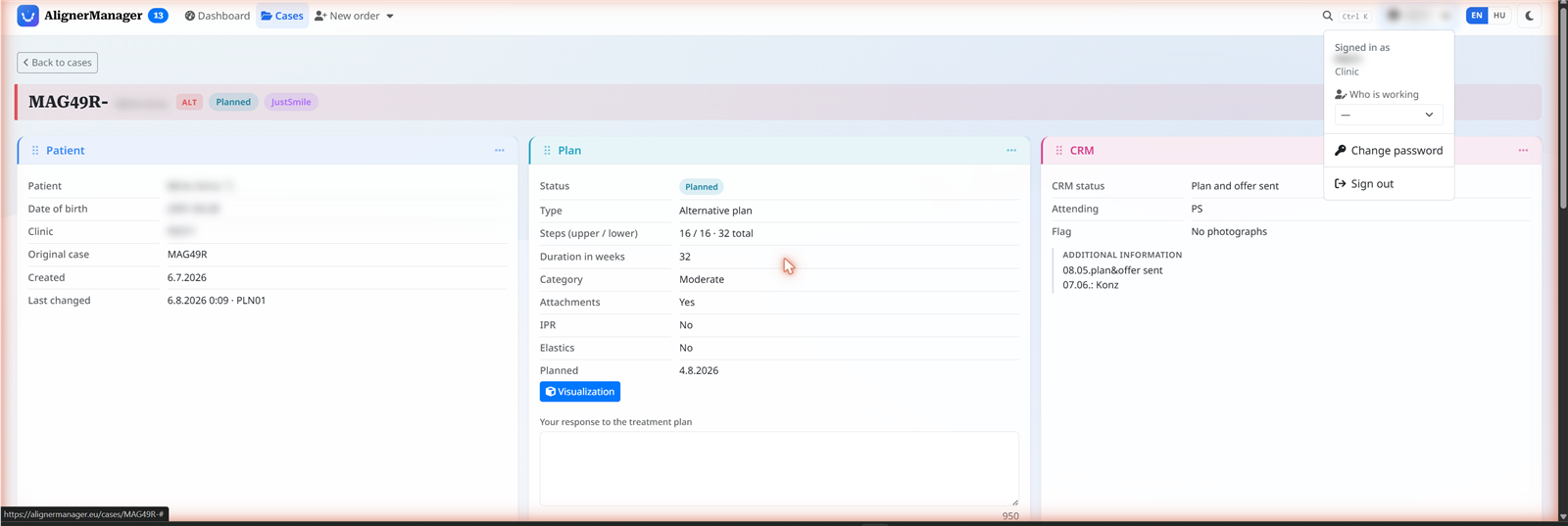
Who is working — some clinics share one sign-in among several team members. If yours does, the account menu (top right, your clinic's name) offers a Who is working selector listing your team. Pick yourself and everything you write — messages, changes — carries your name, so colleagues and the planner know who said what. Each computer remembers its own person, and you can change or clear the selection at any time.
2. The dashboard
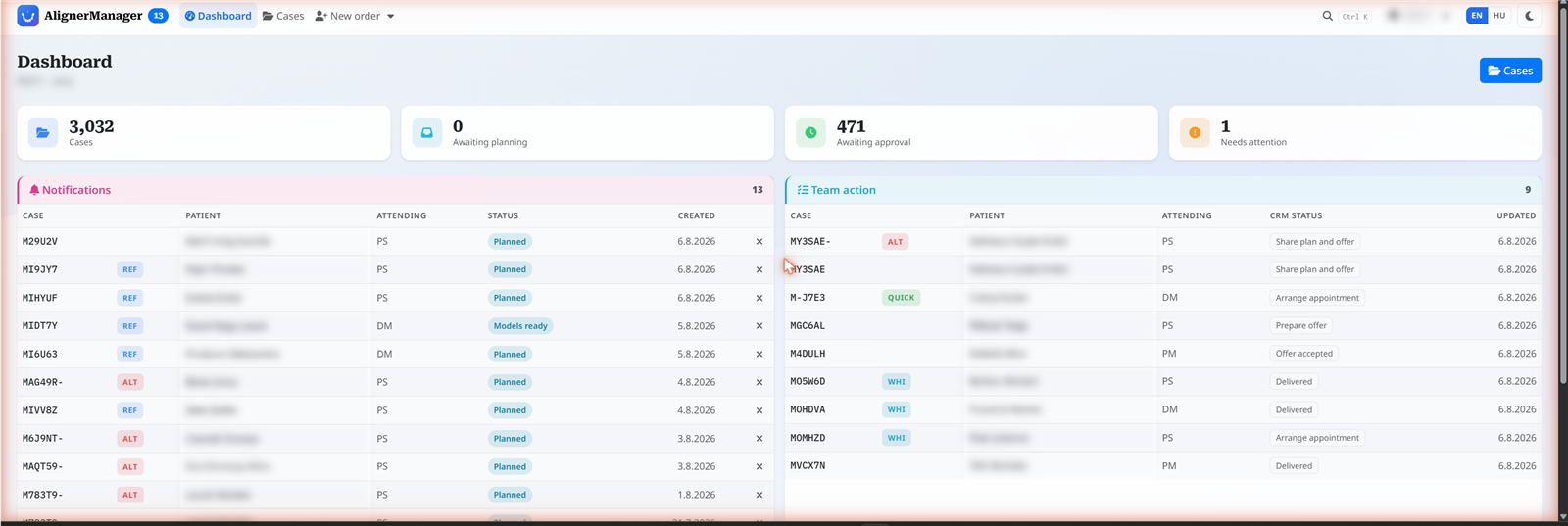
The first page after signing in. It gathers what needs your attention: cases waiting on a decision from you, recent activity, and — depending on your arrangement — notification and document cards. Every item links straight to the case it concerns, so the dashboard is a starting point, not a destination.
3. Finding your cases
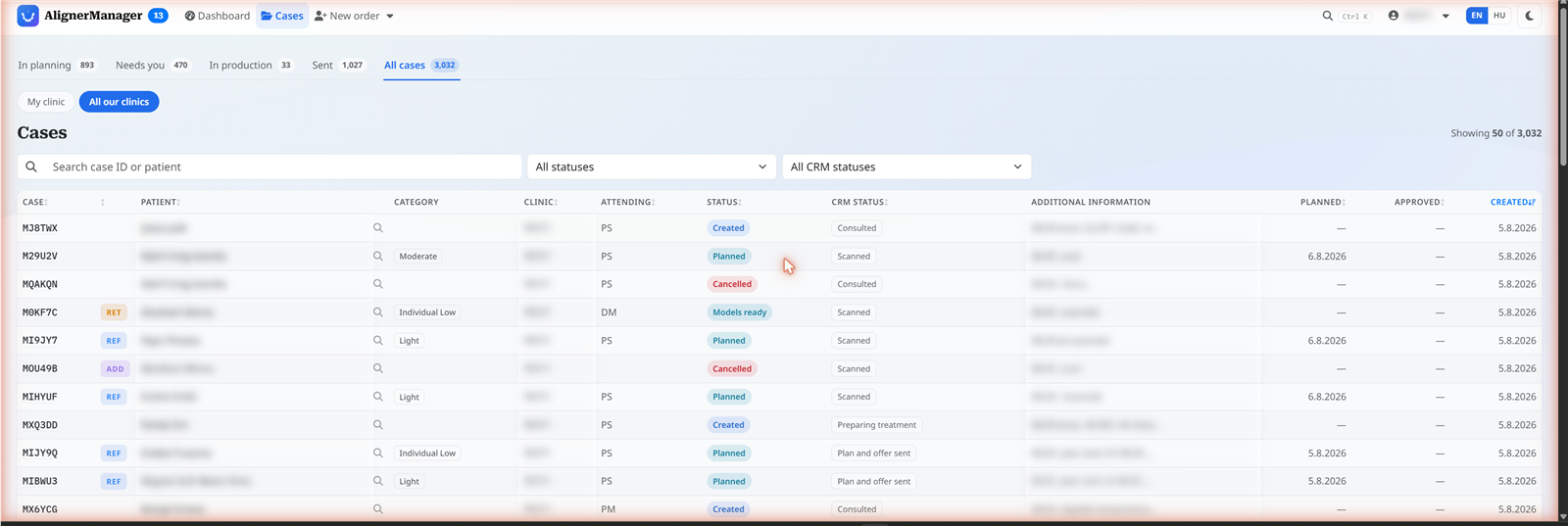
Cases in the menu lists every case that belongs to your clinic. To narrow it down:
- Views — the pills above the table group cases by where they stand (for example open cases, cases waiting on you, finished treatments). The view you were last using is remembered.
- Search — the search box finds a case by its number, the patient, or other details.
- Sorting — click any column heading to sort by it; click again to reverse. A sorted view can be bookmarked or sent to a colleague — the address carries the sorting.
- My clinic / All our clinics — if your practice has several locations under one organisation, these pills switch between the cases of your own location and everyone's.
A case row showing a speech-bubble marker holds a message you have not read yet — see Conversations.
4. Submitting a new case
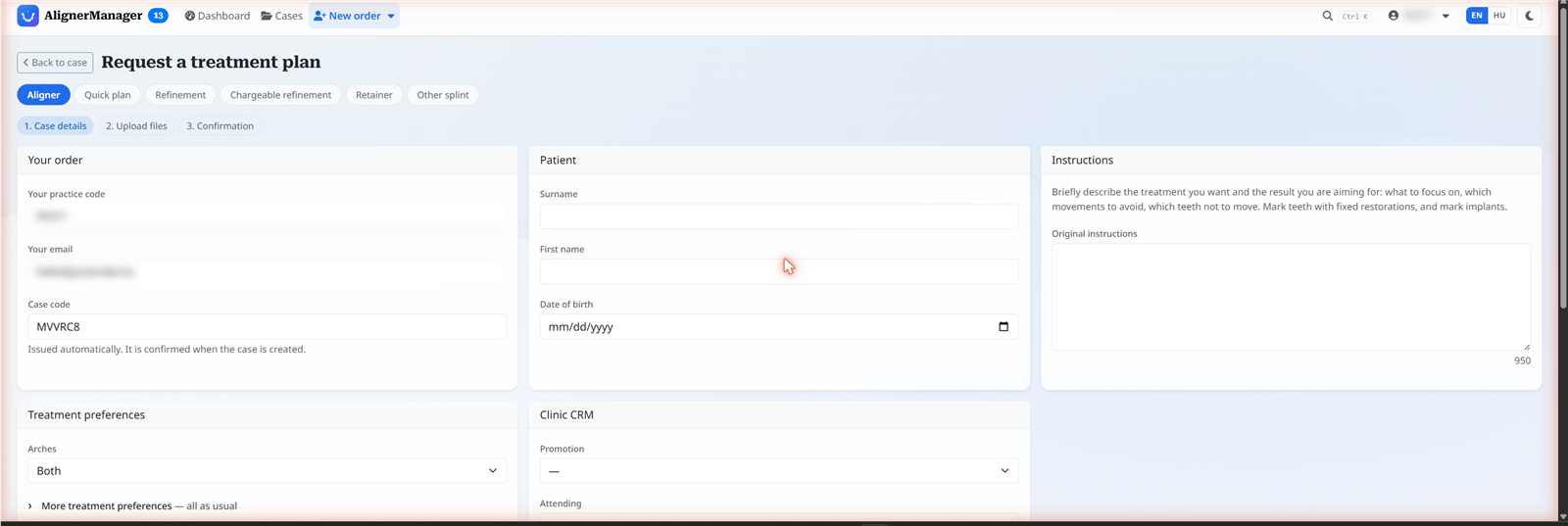
Submit in the menu starts a new treatment request. Depending on your arrangement you will be offered some of the following order types:
- New treatment — a full aligner treatment for a new patient.
- Refinement — a follow-up stage for a patient already in treatment.
- Retainer — retainers after finished treatment.
- Further order types your arrangement may include for specific situations.
Submission happens in three steps:
- The details — patient information and your instructions for the treatment. Fields marked as required must be filled; everything else can be added later.
- The scans and photos — upload the intraoral scans and photographs. You can add several files at once, and the page confirms each upload.
- The confirmation — a summary of what you are about to send. Once confirmed, the case appears in your case list with its own case number, and the planning team is notified.
If you leave partway through, nothing is lost — the case is saved from step one and you can return to it from your case list to finish the upload.
5. The case page
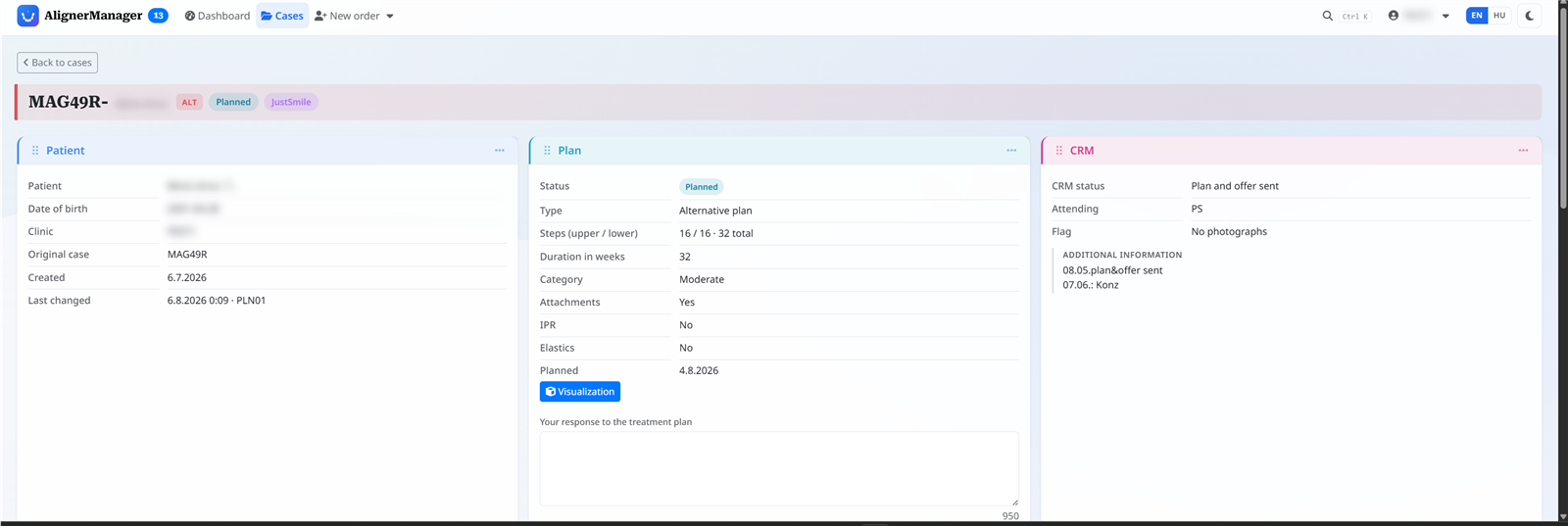
Click any case number to open its page — the one place that shows everything about that treatment. What you see is arranged in cards:
- The status — where the case is right now, from received through planning and production to delivered. The status is always visible at the top.
- Patient and case details — what you submitted, plus anything added since. Empty fields are hidden rather than shown blank, so the page stays readable.
- The treatment plan card — appears once a plan is ready for you; see the next section.
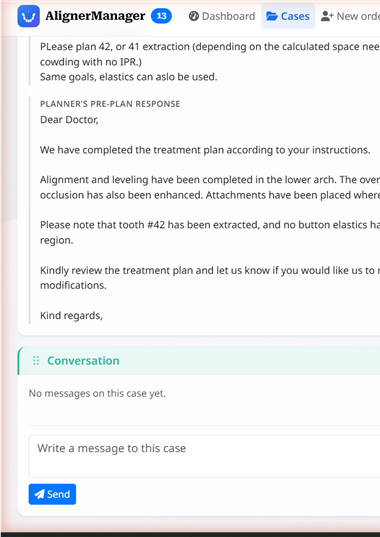
- The conversation — messages between your clinic and the planner working on the case.
- Files — the scans, photos and documents attached to the case.
6. Reviewing the treatment plan
When a treatment plan is ready, the case page offers it for your review:
- The 3D view — opens the interactive visualisation of the planned tooth movement. You can rotate the model, step through the treatment stages, and compare the start with the projected result.
- The tooth-movement overview — where offered, a diagram summarises interproximal reduction and attachments per tooth.
- The number of steps and other key figures of the plan are stated on the plan card.
Under the plan you make your decision. Depending on your arrangement the buttons include:
- Approve — you accept the plan; the case moves toward production.
- Request a change — the plan goes back to the planner with your comments. Write what you would like changed in the conversation so the planner sees it with the request.
- Cancel the plan — the treatment does not go ahead.
- Further options may be offered covering how and where the treatment is produced.
A decision is recorded with your clinic's name (and the person selected in Who is working, where used) — the case history always shows who decided and when.
7. Showing the plan to the patient
Where offered, the plan card provides a share link — a private web address you can send to the patient or open in the consultation room. It shows the 3D visualisation of their own plan and nothing else: no case list, no clinic information, no sign-in. Anyone without the exact link sees nothing, so treat the link like the private document it is.
8. Conversations
Every case carries its own message thread between your clinic and the planner assigned to it. Use it for anything about that patient — questions, clarifications, change requests — so the discussion stays attached to the case instead of scattered across emails.
- A number on the Cases menu item counts your cases holding messages you have not read yet, and the dashboard lists them.
- Opening the case marks its conversation as read.
- Messages show who wrote them and when; with Who is working in use, they carry the team member's name.
9. Notifications
Depending on your arrangement, the app shows in-app notifications — short notes telling you a case needs your attention. A number beside the bell shows how many are waiting; each notification links to its case, and once dealt with you can dismiss it.
10. Photos, scans and documents on a case
The case page's files section holds everything attached to the case. You can:
- Upload further files at any time — additional photos, new scans, documents.
- Download anything attached to the case.
- Open the case's formal documents where they are issued through the app — for example the manufacturer's declaration or the patient consent form.
11. Updating case information
Some details on the case page can be edited by your clinic directly — the pencil next to a section opens it for editing in place; save and the page updates. Depending on your arrangement this can include the patient details, your instructions, and which of your dentists attends and supervises the treatment. Every change is recorded in the case history with who made it and when.
If a colleague changed the same detail while you had it open, the app tells you instead of silently overwriting either of you — reload, check, and save again.
Some case pages also offer Copy, which starts a new related case for the same patient with the details carried over — useful when a treatment continues in a new stage.
12. Deliveries and tracking
Shipments lists the parcels sent to your clinic. Each row shows what was sent and when; clicking the tracking number opens the courier's tracking page for that parcel, so you can see where it is without typing anything.
13. Prices
Where offered, Pricelist shows the prices that apply to your clinic — your own terms, stated per treatment type. It is read-only; pricing questions go to your administrator.
14. Reference documents
Depending on your arrangement, a documents section collects the standing paperwork of the cooperation — terms, data-protection information, patient instructions, safety information. They are always available to read or print, so nothing depends on finding an old email attachment.
15. Reporting an adverse event
If a patient experiences an adverse event connected with an aligner or retainer — an injury, an unexpected reaction, a product defect with consequences — report it through Vigilance. The form asks what happened, when, and with which case; submitting it notifies the manufacturer, who is required to assess such reports. Please report even events that seem minor; the assessment is the manufacturer's job, not a burden on you.
16. Your account
The account menu (top right) gathers everything about your own access:
- Change password — set a new password whenever you wish. Choose one that is long and not used anywhere else.
- Invoicing and delivery details — your clinic's billing address and delivery address, editable by you so they are always current.
- Language and theme — as on the sign-in page, remembered for you.
- Who is working — where used, the team member selector described in section 1.
- Sign out — always sign out on a shared or public computer.
17. Search
The search box finds cases by number, patient or other details. From anywhere in the app, Ctrl+K (⌘+K on a Mac) opens a quick-search palette — type a few characters and jump straight to the case. Search only ever looks within your own clinic's cases.
18. Getting help
For anything about a specific case, the fastest route is the case's own conversation — the planner working on it reads it. For account questions, access problems or anything else, contact your administrator through your usual channel.